How to create a new brief?
How to create a brief step by step VIDEO
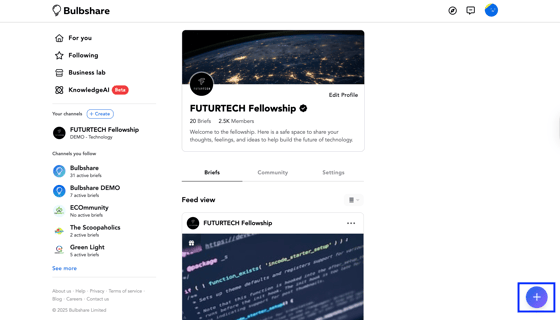
- Click on the plus sign.
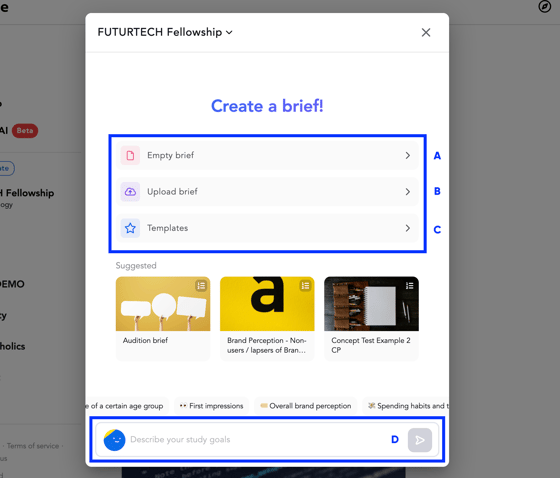
- The platform will show you a pop-up with different ways to create a brief. Choose the one that works for you:
- Empty brief: Build your brief from scratch, question by question.
- Upload brief: Import your methodology from a Word document.
- Templates: Use one of our predesigned templates.
- BriefAI: Use our AI-powered survey builder to create your brief.
- Once you have selected how to create your activity, you will enter the brief builder. Follow these steps:
- Brief: Include a title, a main image, and a description for your brief.
- General: Decide the channel where it will go live. Include details such as the internal name, the project it belongs to so then it can be analysed by AI, the type of brief you want to launch, and the audience. Select “Survey” to launch a survey brief. Select “Advanced” to launch the brief to specific groups within your community.
- Audience: Define who will receive the brief. You can filter based on demographics or any subgroup previously identified in your community.
- Survey: Add the questions you want to ask. If you have imported your brief, used a template, or used AI, this section will already be filled. You can edit it and then preview the brief. Once the survey is ready you can preview it before moving on to Launch.
- Launch: Once your brief is ready, select when it will go live, prepare the communications, and launch the brief.
How to test a brief before launch?
There are two ways to test your briefs — either directly on mybulbshare.com (recommended) or in the Bulbshare mobile app.
Option 1: Test directly on mybulbshare.com
Once your questionnaire is built:
-
Click “Preview survey.”
-
Select Open, then choose the view you want to test (Desktop, Tablet, Mobile) - to see how it appears to community members - most users complete briefs on their phones = mobile view.
As this is a survey preview, your response will not be saved.
Review and test the brief to ensure all questions, logic, and media display correctly.
How to preview your brief on MyBulbshare.com video - HERE
Option 2: Test in the Bulbshare app (via demo channel)
You can also test your brief by launching it in a demo channel before going live:
Launch the brief under your demo channel.
Open the Bulbshare app on your phone.
Access the demo channel and complete the brief as a community member would — this lets you test the full mobile experience and functionality. Your response will be saved under demo channel.
Important:
If you’re testing under a demo channel, your response will be recorded under that demo channel brief.
If you need to test the brief multiple times, you’ll need to adjust your settings:
Go to your brief’s General setup.
Select Advanced.
Under Audience, change Responses per participant to Unlimited.
This will allow you to complete the brief multiple times during testing.
Remember to change this setting back to 1 response per participant before launching your brief to your live community.
How do I launch my brief?
Once you tested the brief and are happy to launch it (Channel and Audience is set up), go to Launch set up.
Here you can set up:
- Rewards - incentives for your community if they complete this brief
- Launch date - if you want to launch it now (Click "Launch" on the right side) or schedule it in the future -> set a date and click "Schedule" (Launch button on the right side will change to Schedule)
- Notifications - Mobile and/or email notifications — you can schedule more than one. This will let your community know about the new brief.
Comments
Please sign in to leave a comment.