- If you’re the Organization Owner, you can invite new team members directly from your Bulbshare account.
- Go to https://my.bulbshare.com and sign in.
-
Click in your profile icon (top right corner).

- Select Business Centre.
-
Click Team Management.
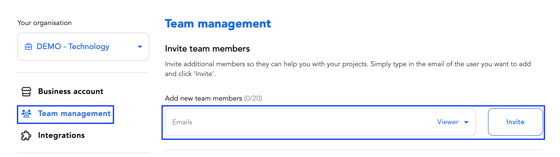
- To invite new team members, include their email in the email box and define the role you want them to have:
- Organisation Owner. There is one Organisation Owner. This user has all rights, and this access must be given by the Bulbshare team. This user can give Administrator and Viewer access to others.
- Administrator. Users with this role can build and launch briefs, analyse the results, and incentivise briefs. This user can give Viewer access.
- Viewer. Users with this role can access the results, use all the analytics tools, and export the results.
- Click Invite Members.
Each person will receive an invitation email titled “Someone invited you to join Bulbshare! 👋”.
Once they click “Join Bulbshare” and confirm their email, they’ll be added to your organization.
-
If you’re NOT the Organization Owner and are an Administrator, you can ONLY invite Viewers.
- If you need to invite an Administrator, please contact your Owner or raise a support ticket to request access for your colleagues.
Comments
Please sign in to leave a comment.